FREE 2-SERIES APP + LOADERS · NO MEMBERSHIP NEEDED TO MOD · SUPPORT IS OPTIONAL

AURORA CAK FOUNDRY / THE SIMPLE VERSION

Read a CAK.
Copy it out.
Build your own.

CAK Foundry is the tool inside AuroraForge NT100 that reads your game's CAK archives and writes your own mod CAK. This page walks through it once, in order, with a picture at every step.

Open the app / Inspect & Convert → CAK FoundryYour game files are never modifiedRule Read → Copy → Check

The safety rule: Read → Copy → Check

Read the archive. Copy the files you need into your own folder. Check your mod in game before you ship it. AuroraForge NT100 uses the Oodle library already included with your installed game, it does not bundle game files, and it never writes back into your original CAK archives.

PART ONE / OPEN IT AND FIND YOUR GAME

Point it at the game.

CAK Foundry lives inside the main app. Open it, tell it where your game is installed, and wait until it says it is ready.

1

Open CAK Foundry.

In AuroraForge NT100, click Inspect & Convert in the sidebar, then choose CAK Foundry. You land on the Aurora CAK Foundry page.

Everything happens inside this one window. There is no command line and no extra download.

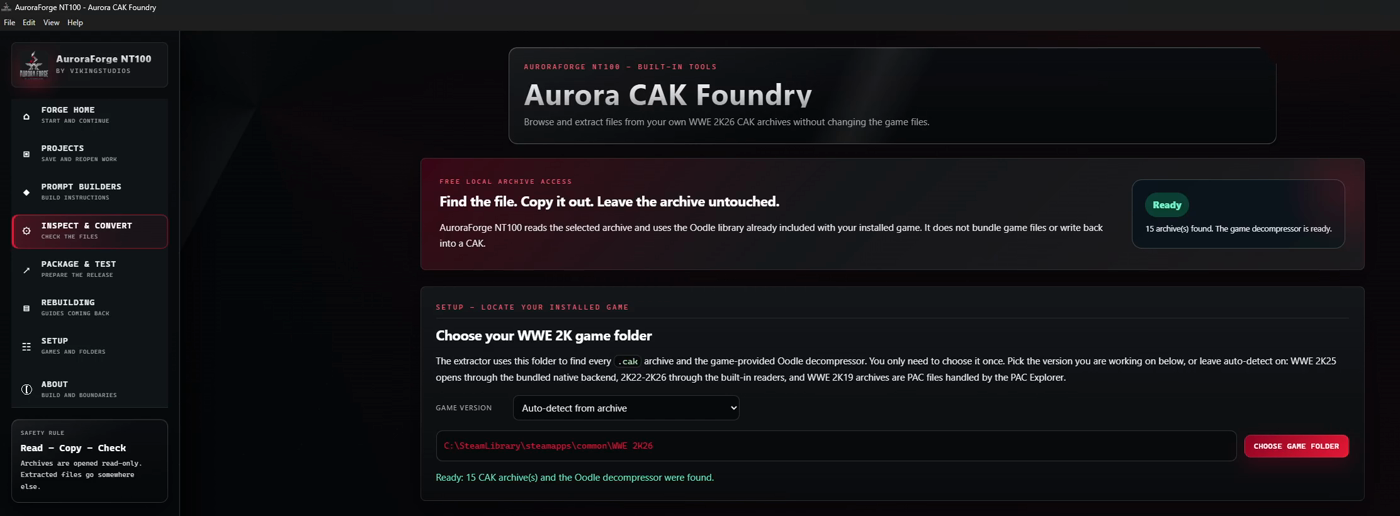
Aurora CAK Foundry page inside AuroraForge NT100
Aurora CAK Foundry: browse and extract files from your own CAK archives without changing the game files.
2

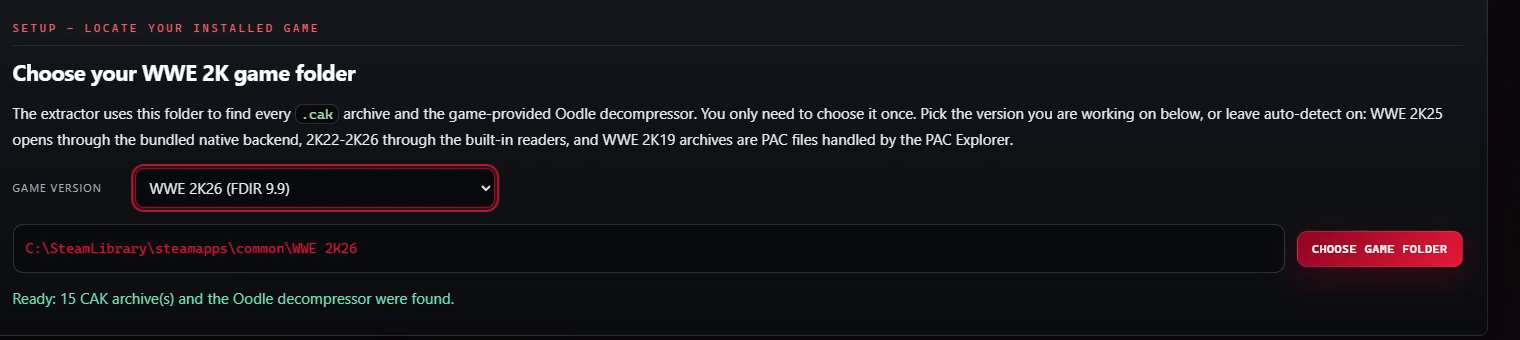
Choose your WWE 2K game folder.

Set Game version, then click Choose Game Folder and pick the folder that contains WWE2K26_x64.exe. It is usually under SteamLibrary\steamapps\common\WWE 2K26.

  • Auto-detect from archive is fine for most people.
  • You can also force a version: 2K19 (PAC files), 2K20, 2K22, 2K23, 2K24, 2K25, or 2K26.
  • Wait for the green message: Ready: 15 CAK archive(s) and the Oodle decompressor were found.
Game version dropdown and chosen game folder with ready message
Choose the game folder once. CAK Foundry reuses it for the CAK list and the rebuild.

PART TWO / CHOOSE AN ARCHIVE AND READ IT

Look inside a CAK.

A CAK is the game archive that holds the assets. CAK Foundry lists the archives it found, then shows you every file inside.

3

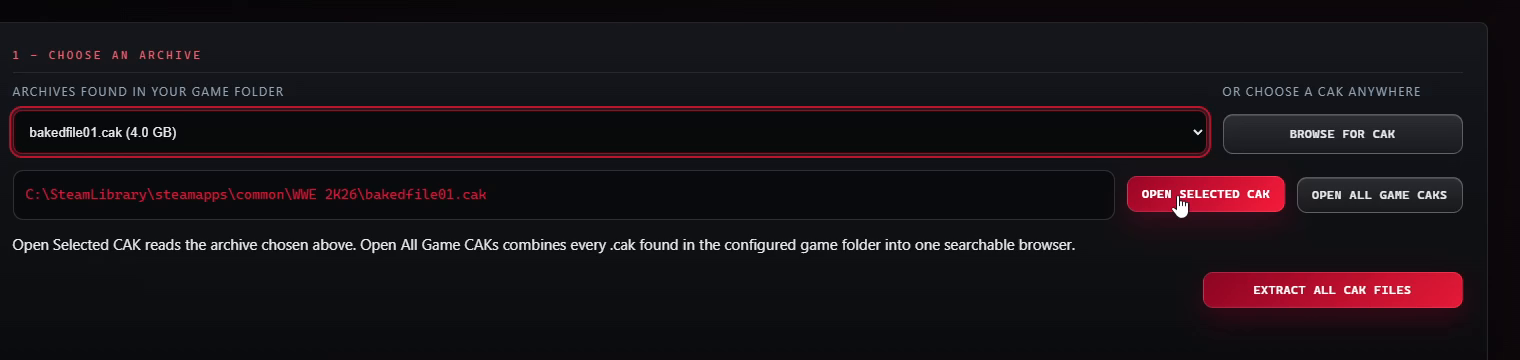
Pick an archive.

The Archives found in your game folder list shows every CAK it found, with its size. Choose one, or click Browse for CAK if the archive is somewhere else.

Archive dropdown listing CAK files found in the game folder
The archive list comes straight from your game folder.
4

Open it.

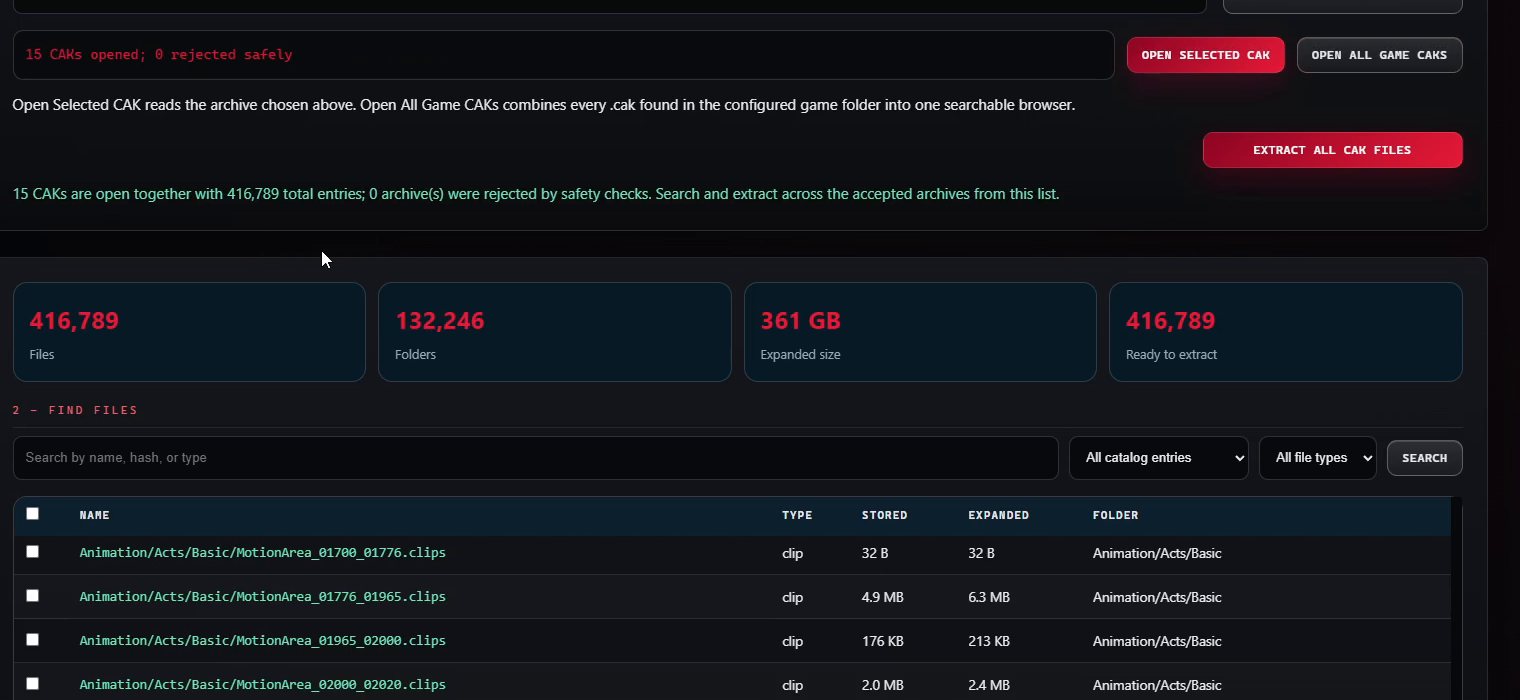
Click Open Selected CAK to read the archive you chose. Click Open All Game CAKs to combine every CAK in the game folder into one searchable browser.

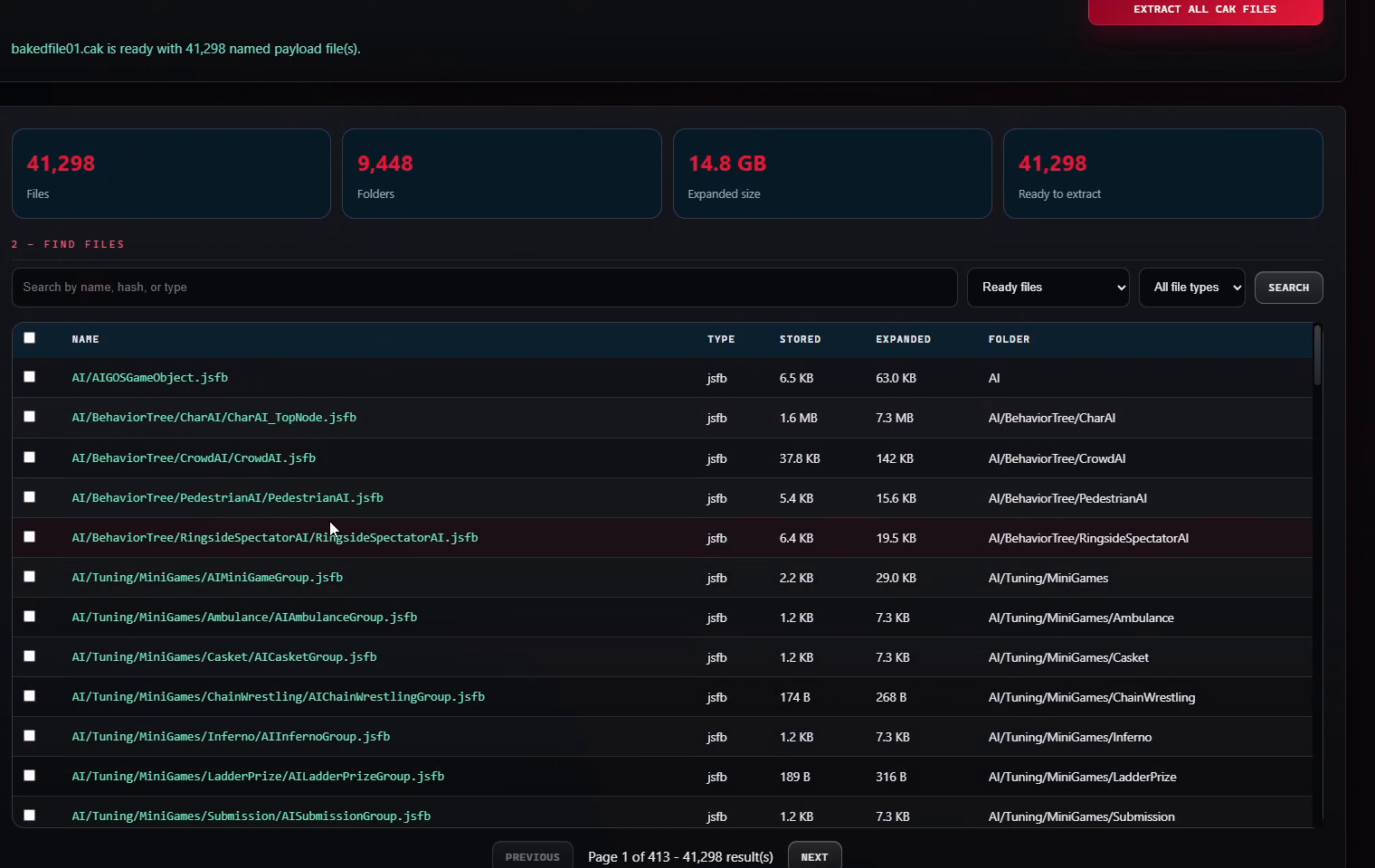
When it is ready you will see the file count, the folder count, the expanded size, and how many files are ready to extract.

Open Selected CAK and Open All Game CAKs buttons
Open one archive, or all of them at once.
5

Find the files you need.

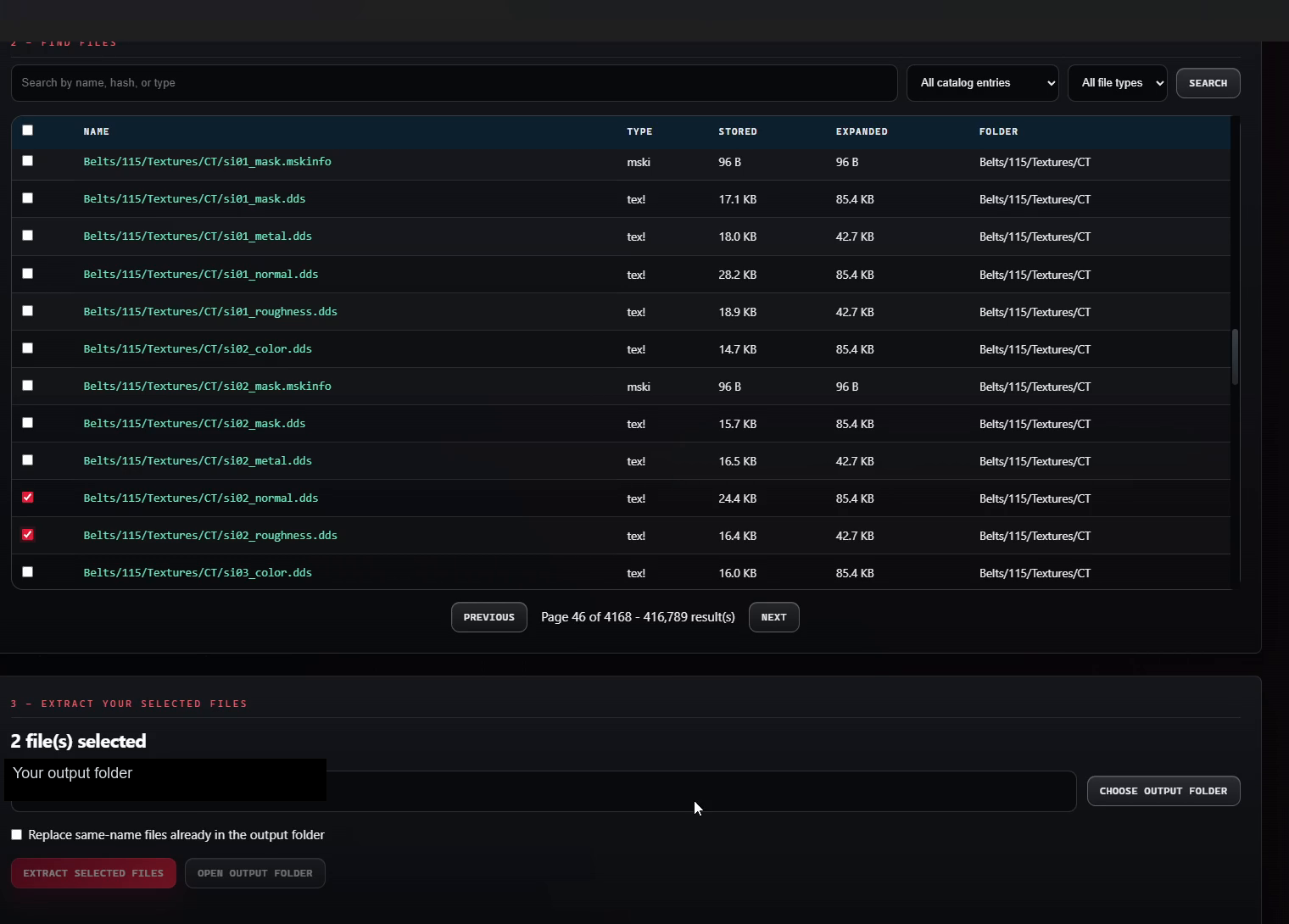
Search by name, hash, or type. Use the Ready files filter and the All file types filter to narrow it down. Tick the box next to any file to select it. Use PREVIOUS and NEXT to move through pages.

  • Stored is the size inside the CAK.
  • Expanded is the size after it is decompressed.
  • Everything stays read-only. You are only reading.
CAK Foundry file browser with counts and file list
The browser shows every file with its type, stored size, expanded size, and folder.

PART THREE / COPY FILES OUT

Extract what you need.

Extraction writes a copy into a folder you choose. The CAK itself is never changed.

6

Tick the files, then choose an output folder.

Check the files you want. Scroll to the bottom of the panel and pick the folder the copies should go into. Use a folder of your own, for example Documents\AuroraForge\Extracted.

There is also Extract All CAK Files if you truly want the whole archive. It is huge, so use it on purpose.

Selected files count and output folder field
The panel shows how many files are selected before you extract.
7

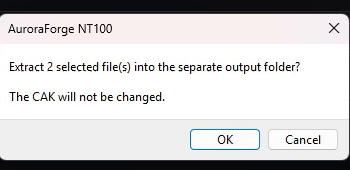
Confirm the copy.

A small box asks: Extract 2 selected file(s) into the separate output folder? The CAK will not be changed. Click OK.

If you are not sure about a file, cancel and check the name first.

Extract confirmation dialog stating the CAK will not be changed
The CAK is never changed. Only your output folder is written.
8

Wait for the extraction to finish.

The counts update when it is done. Your files are in the output folder you picked. Open that folder and check that the files look right before you use them.

This is the Check part of the rule: look at what you copied.

Extraction finished with counts and extracted file list
Extraction finished: file count, folder count, and expanded size.

PART FOUR / BUILD YOUR OWN CAK

Rebuild a mod folder into a CAK.

This part takes a folder of extracted, edited files and packs it back into a CAK your game can load.

9

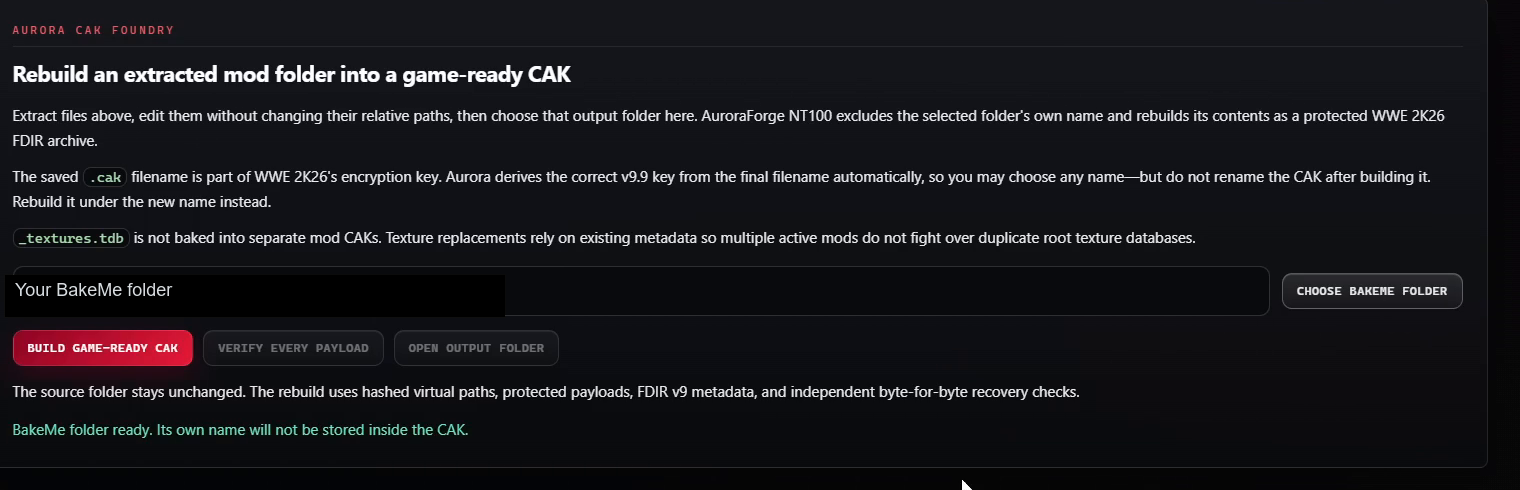
Choose the BakeMe folder.

Click Choose BakeMe Folder and pick the folder that holds your extracted and edited files. AuroraForge NT100 excludes that folder's own name and rebuilds its contents as a protected WWE 2K26 FDIR archive.

  • Do not change the relative paths of the files inside the folder.
  • Save it under a .cak filename. The correct v9.9 key is derived from the filename, so do not rename the CAK after you build it.
  • _textures.tdb is not baked into separate mod CAKs. Texture replacements rely on existing metadata.
Rebuild panel with BakeMe folder picker
Pick the folder that contains your extracted files.
10

Save the new CAK somewhere else.

Click Save BakeMe Folder. In the Save box, give the file a .cak name and pick a save location outside your BakeMe folder.

Save it outside the BakeMe folder. The builder refuses to write the new CAK inside the folder it is reading from.
Windows save dialog for a WWE 2K26 CAK archive
Save as type: WWE 2K26 CAK archive (*.cak).
11

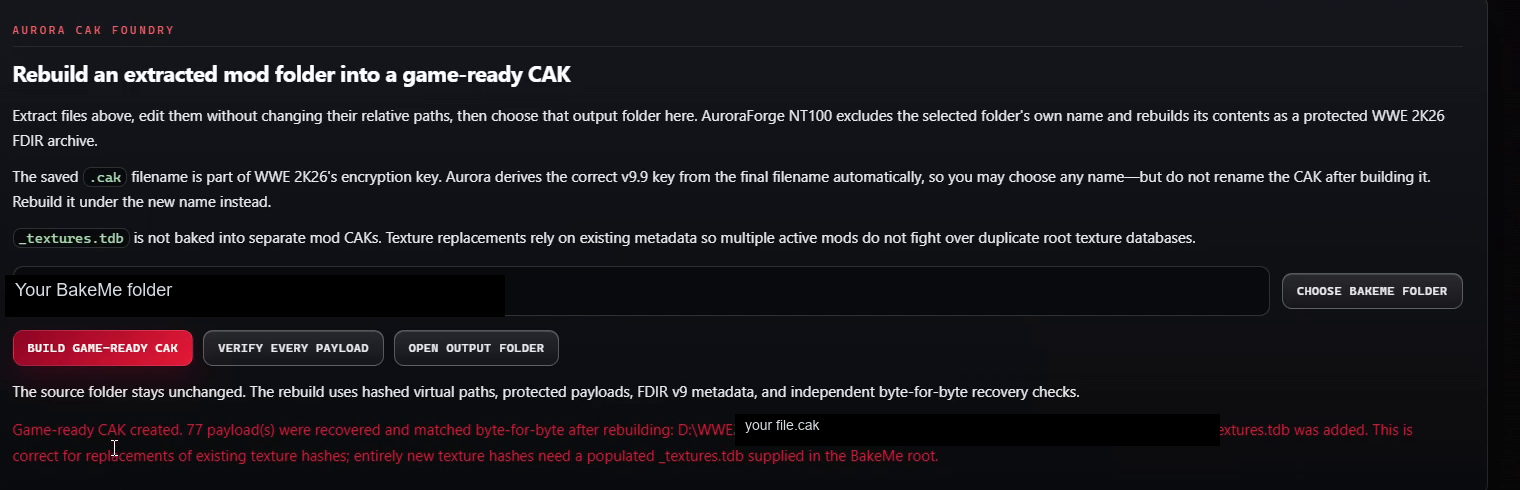
Wait for the rebuild.

The build runs the same toolchain the app uses. When it finishes you will see AuroraForge NT100 CAK rebuilt successfully and Ready to use.

Your new CAK is a separate file. The game archives are still untouched.

CAK rebuild success message
The rebuild reports success and marks the file ready to use.
12

If it says the CAK is outside the BakeMe folder, fix the save path.

The error Save the new CAK outside the selected BakeMe folder is not a broken build. It means the save location was inside the folder you are rebuilding. Pick a different folder, such as Documents\AuroraForge\Mods, and run it again.

Error telling the user to save the CAK outside the BakeMe folder
One clear fix: save the new CAK outside the BakeMe folder.

If something goes wrong

Most problems are a wrong folder choice or a save location, not a broken tool.

It says the game folder is not ready

Pick the folder that contains WWE2K26_x64.exe itself, not the folder above it. If you use Steam, open Steam, right-click WWE 2K26, choose Manage, then Browse local files.

No archives are listed

Confirm the game version and the folder, then choose the folder again. If you moved the game, point CAK Foundry at the new location.

It says the Oodle decompressor was not found

That library ships with the game. Make sure you chose the real game folder, and that the game files are still installed and not moved to another drive.

Extraction is slow or huge

A full CAK can hold tens of thousands of files and many gigabytes. Search for the file you need and extract only that.

The rebuild says to save outside the BakeMe folder

Save the new CAK in a different folder, for example Documents\AuroraForge\Mods, then rebuild again.

Does this change my game?

No. CAK Foundry reads your game archives and writes new files in folders you choose. It never edits the archives in your game folder. Stage and test your mod with the loader before you play with it.
Still stuck? Copy the exact red error text from the panel, note which step you were on, and ask in the Discord. The video for this guide is the same flow, start to finish.